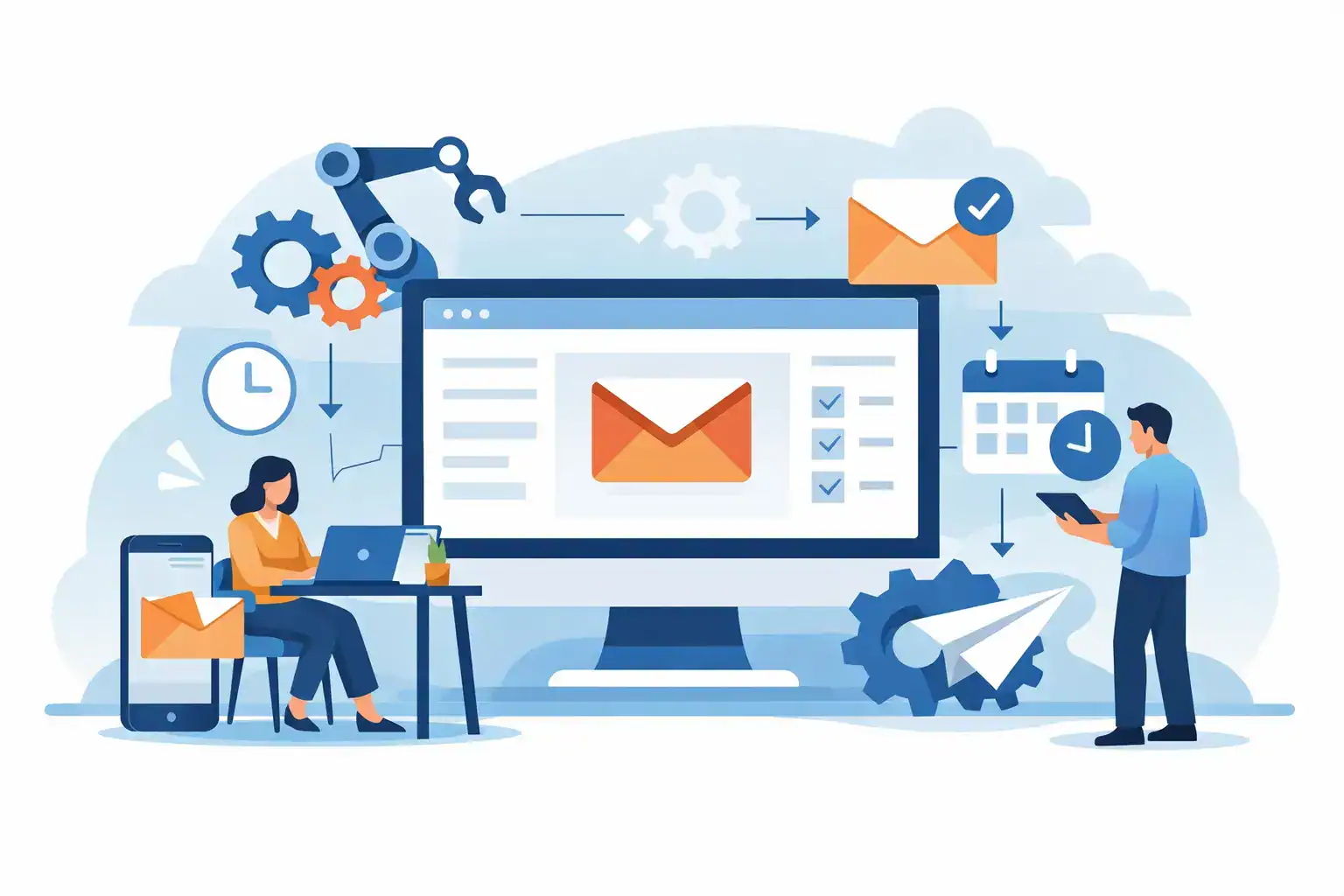
Gmail Automation for Small Businesses That Saves Time
A missed inquiry at 4:30 p.m. can become a lost customer by breakfast. So can an inbox full of appointment questions, supplier receipts, and “just checking in” messages that all need an answer from the same person: you. Gmail automation helps small businesses reduce that pressure without hiring a single admin employee or turning customer communication into cold, robotic nonsense.
The goal is not to automate every email. The goal is to stop manually handling the predictable ones. A good system sorts messages, prepares the right response, reminds you when action is needed, and keeps routine work moving without lifting a finger. You remain responsible for the conversations that need judgment, empathy, or a real decision.
What Gmail Automation Should Actually Do
For a sole trader or lean team, Gmail automation should create three practical outcomes: fewer messages to sort, faster replies to common questions, and fewer leads slipping through the cracks.
Start with Gmail’s built-in tools before paying for extra software. Filters, labels, templates, scheduled send, and stars can handle more than most owners realize. They are reliable because they work inside the inbox you already use, and they do not require a complicated setup or technical training.
The next level is connecting Gmail to a booking system, form, spreadsheet, or automation platform. That can trigger reminders and move lead details where they need to go. The final level is AI-assisted email handling, where ChatGPT helps draft, summarize, categorize, or personalize messages. This can save serious time, but it needs clearer guardrails.
A useful rule is simple: automate repeatable administration, not sensitive judgment. A booking confirmation is repeatable. Responding to a complaint about a treatment outcome is not. A receipt label is repeatable. Deciding whether to refund an unhappy customer is not.
Five Gmail Automation Workflows Worth Setting Up
1. Route new inquiries to a dedicated lead folder
If inquiries arrive from your website, Instagram, Google Business Profile, or referrals, create a Gmail filter that applies a label such as “New Leads.” You can filter based on the recipient address, a form subject line, or keywords such as “appointment,” “quote,” or “availability.”
Set the filter to mark the email as important and keep it out of the general noise. If you receive enough inquiries, create separate labels for different services. A chiropractor may separate “New Patient” from “Insurance Question.” A beauty therapist may separate “Bridal” from “Regular Booking.”
This sounds basic, but it changes how you work. Instead of scanning 40 emails to find the three that could become revenue, you open one folder and see them immediately.
2. Use templates for questions you answer every week
Most businesses have a small set of repeat questions: prices, opening hours, parking, cancellation terms, turnaround times, product availability, or how to book. Writing a fresh reply each time wastes minutes that add up quickly.
Turn your best answers into Gmail templates. Keep them friendly, short, and easy to personalize. Leave clear placeholders for names, dates, prices, and links you may add later. Before sending, read the message once and make sure it answers what the person actually asked.
For example, a specialist retailer might keep templates for product stock questions, age-verification policies, and local pickup. A service provider could use templates for first appointments, preparation instructions, and rescheduling. The template does the heavy lifting; your edit keeps it human.
Do not use a template to brush off a complicated question. If a customer has already explained a personal concern in detail, a fast generic reply can do more damage than a slightly slower thoughtful one.
3. Automatically label receipts and supplier invoices
Expense admin is one of the easiest places to win back time. Create Gmail filters for regular suppliers and payment services so receipts automatically receive labels such as “Expenses,” “Inventory,” “Software,” or “Tax Records.” You can also star or flag high-value supplier invoices that need approval.
This does not replace bookkeeping, but it makes month-end far less painful. When your accountant asks for a software invoice or you need to check why costs rose, the paperwork is already organized.
Use this carefully. A sender address alone is not always enough to identify a genuine invoice. Scammers copy familiar brands and invoice formats. Never create an automation that forwards payment requests, changes bank details, or marks financial emails as safe without a human check.
4. Send follow-ups when a lead goes quiet
A surprising amount of revenue sits in conversations that simply stopped. Someone asked about availability, received your answer, and got distracted. That does not always mean they were not interested.
Gmail can help you create a simple follow-up routine. Apply a “Follow Up” label to leads that need a reply. Then use a task reminder, calendar reminder, or an automation tool to prompt you after two or three business days. Your follow-up can be brief: ask whether they have questions, offer the next available slot, or let them know you are holding a quote until a certain date.
For higher-volume businesses, an automation platform can send a pre-approved follow-up email when a lead form is submitted and no booking happens. This works best when the follow-up is useful rather than pushy. A local salon might offer a reminder about a consultation. A contractor might send a checklist explaining what is included in an estimate.
Avoid repeated chasing. One helpful follow-up and one final check-in are usually enough. More than that can make a small business feel like a spam machine.
5. Let AI draft replies, but keep approval with you
AI can be a strong email assistant when it is used as a first-draft tool. Copy a customer message into ChatGPT, remove personal or sensitive details, and ask for a reply in your usual tone. Give it rules: keep the response under 120 words, answer the customer’s question directly, avoid making promises, and suggest the next step.
For a more consistent result, use a repeatable prompt such as: “Draft a warm, professional reply to this customer email. Use plain English. Confirm what we can do, state any relevant policy clearly, and end with one practical next step. Do not invent prices, availability, or medical advice.”
This is especially useful for long emails, review-related messages, and requests that require a calm, organized reply. But AI should not have free rein to send messages without review, particularly in health, legal, financial, or complaint-related situations.
The trade-off is straightforward. Full auto-send may save a few more minutes, but it also raises the risk of an inaccurate answer, an awkward tone, or a privacy mistake. For most small businesses, AI drafts plus human approval is the sensible middle ground.
Set Up Gmail Automation Without Creating a Mess
Start with one workflow that annoys you every week. Do not build ten filters in an afternoon and then forget how they work. Pick one inbox problem, set a clear rule, and test it for seven days.
Name labels plainly. “Leads,” “Bookings,” “Expenses,” and “Needs Reply” are better than clever names you will not remember. Keep your filter logic simple, too. If a rule is hard to explain in one sentence, it may be too complicated to maintain.
Check your automated folders weekly at first. Filters can catch the wrong messages, especially when customers use unexpected words or suppliers change their email address. A five-minute review protects you from missing a real lead because it landed under the wrong label.
Be cautious with customer data. Do not paste medical information, payment details, identification documents, or private customer histories into public AI tools. If you use AI-connected inbox software, read its privacy terms and understand what data it accesses, stores, or uses for training. Reassurance, not hype, means knowing where your information goes.
Also keep an eye on cost. Gmail’s native features are often enough for a business with a manageable inbox. Paid automation tools make sense when messages need to trigger other systems, such as adding a lead to a CRM or sending a booking reminder. Buy the extra layer only when it solves a real bottleneck.
A Better Inbox Is an Operating System
Your inbox should not be the place where leads disappear, bills get buried, and every small decision waits for your attention. With a few well-chosen rules, Gmail can quietly sort the routine work while you focus on customers, cash flow, and the jobs only you can do.
Start with the email you are most tired of handling manually. Automate that one first, watch the time it gives back, and let the next useful workflow earn its place.